 Jeremy Bowen
Samsung is closing its own messaging app for good. The phone company shared an “End of Service” notice on its website, saying the Samsung Messages app will not be available after July this year.
Samsung Messages App: What Is Changing
After the Samsung Messages app stops, users will no longer be able to send texts. The only use left will be for emergency numbers or saved emergency contacts. After July 2026, the app will also be removed from the Galaxy Store, so it cannot be downloaded again.
Samsung has already started reducing access. For example, users with newer phones like the Galaxy S26 cannot install the app. This change mostly affects devices running Android 12 or newer, while older phones with Android 11 or below will continue to work as before.
Samsung Confirms July 2026 End
Samsung has not shared the exact final date yet. It also said that sending messages through the app will stop, except for emergency contacts or services.
This move is expected, as Samsung has slowly been removing its Messages app for the past few years. Starting from Galaxy Z Fold 6 and Flip 6, and later the Galaxy S25 series, Samsung stopped adding its own app and instead included Google Messages.
Google Messages Becomes the Main App
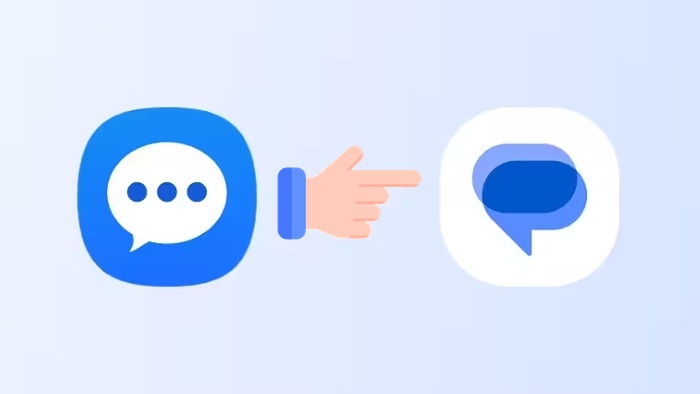
Samsung is asking users to move to Google Messages, which is already the main messaging app on Android.
Google Messages gives better features like RCS messaging, which allows sending clear photos and videos, seeing typing updates, and joining group chats. Some Samsung custom features may be missing, but Google Messages adds smart AI tools from Gemini, like editing photos inside chats.
It also helps users continue chats easily across phones, smartwatches, and tablets. Samsung also said Google Messages includes smart scam alerts and strong spam filters to keep users safe.
Simple Steps to Switch from the Samsung Messages app to Google Messages
Samsung users may see a message inside the app with steps to switch. You can also do it manually:
- Open or download Google Messages
- When you open it, a message will appear asking to set it as the default
- Tap “Set default SMS app.”
- Choose Google Messages (white icon with blue chat bubble)
- Tap “Set as default.”
On Android 14 and newer, the Google Messages icon may move to the home screen automatically. For Android 12 or 13 users, you may need to add it manually:
- Press and hold the Samsung Messages and remove it
- Find Google Messages
- Press and hold it, then tap “Add to home.”
- Drag it to the home screen dock
- Extra Points for Older Devices
Samsung said phones made before 2022 may face short issues with RCS chats, but this can be fixed if everyone moves to Google Messages. For older smartwatches using Tizen (before Galaxy Watch4), messaging will stop working after switching to Google Messages.